
AP CSP - Final Tri 2
Categories: PersonalAP CSP Final Tri 2
This infographic summarizes my AP CSP Final Tri 2 evidence for Skill A and Skill B using GameBuilder examples: problem framing, custom asset workflow, and program elements (input, lists, procedures, algorithms, calls, and output).
Skill A Video Demonstration
Open in DriveSkill B · Program Evidence
Input, data abstraction, procedures, and outputUser Input
Input Requirement
- Button click creates NPC slots
- NPC X/Y slider `input` events update NPC position values
- Input is event-triggered from UI actions
Explanation:
This is how the game listens to user actions. When someone clicks a button or moves an NPC slider, the program immediately reacts and updates generated code.
- Clicking Add NPC creates a new character slot.
- Moving NPC X/Y sliders changes NPC position input values.
- The game updates in real time as the user interacts.
Example event listeners:
if (ui.addNpcBtn) {
  ui.addNpcBtn.addEventListener('click', () => {
    const slot = makeNpcSlot(ui.npcs.length + 1);
  });
}

['input', 'change'].forEach((evt) => {
  slot.nX?.addEventListener(evt, () => { rerun(); });
  slot.nY?.addEventListener(evt, () => { rerun(); });
});
List Data Abstraction
List Requirement
- Uses `this.classes` list to store all game object definitions
- Each item pairs a class type with its data object
- New NPCs/barriers are added as new list entries
- One structure scales as game object count changes
Explanation:
While the user is creating their game, it creates a list that contains all the assets for the game they are building, this.classes, to hold all game objects that should be created for the level. Each entry has the same structure: { class: SomeClass, data: someDataObject }.
This matters because:
- The program can treat all object setups in a consistent format.
- Adding new objects (like another barrier or NPC) only requires adding another list item.
- The game engine can iterate through one list to initialize many objects.
This reduces complexity because I do not need separate hard-coded initialization flows for each object type.
this.classes = [
  { class: GameEnvBackground, data: bgData },
  { class: Player, data: playerData },
  { class: Npc, data: npcData1 },
  { class: Barrier, data: dbarrier_1 },
  { class: Barrier, data: dbarrier_2 }
];
Procedure + Algorithm
Procedure + Algorithm Requirement
- Procedure: `barriers_generate(walls, drawShapes, options = {})`
- Selection: defaults and barrier-type filtering
- Iteration: loops through walls and drawn barriers
- Output: returns `{ defs, classes }`
Explanation:
A procedure is a reusable recipe the program can run whenever needed. An algorithm is the step-by-step method inside that recipe.
In this project, the barrier procedure:
- Reads wall and shape data.
- Decides what should be included.
- Repeats through each item.
- Returns finished results for the game to use.
This makes behavior consistent and avoids repeating the same logic in multiple places.
Core procedure signature:
function barriers_generate(walls, drawShapes, options = {}) {
  const defs = [];
  const classes = [];
  const visible = options.visible !== undefined ? options.visible : true;
  const scaleX = options.scaleX || 1;
  const scaleY = options.scaleY || 1;

  // Process walls (manual panel entries)
  walls.forEach((w, idx) => {
    const bData = barrier_extract(w, 'wall', idx, { visible: visible });
    const barrierCode = barrier_code(bData);
    defs.push(barrierCode.def);
    classes.push(barrierCode.classEntry);
  });

  // Process drawn barriers (from Draw Collision Wall button)
  const drawnBarriers = (drawShapes || []).filter(s => s.type === 'barrier');
  drawnBarriers.forEach((b, bIdx) => {
    const bData = barrier_extract(b, 'drawn', bIdx, { scaleX: scaleX, scaleY: scaleY });
    const barrierCode = barrier_code(bData);
    defs.push(barrierCode.def);
    classes.push(barrierCode.classEntry);
  });

  return { defs, classes };
}
Procedure Calls + Output
Calls + Output Requirement
- Multiple call sites show reusable procedure
- Generated defs/classes feed final game output
- Overlay rendering reflects user-created shapes
- Run action updates game display
Explanation:
Calling a procedure is like pressing “run” on a built-in tool. The program sends in current data (walls and drawn shapes), the procedure processes it, and then the game shows the result visually.
In simple terms:
- Input: user-created walls/shapes
- Processing:
barriers_generate(...)organizes them - Output: updated objects appear in the game display
This demonstrates the full cycle from user action to visible outcome.
The program calls the same custom procedure in different places, then uses returned structures and rendering logic to produce visible on-screen changes from user input.
// Procedure call example
const generated = barriers_generate(ui.walls, ui.drawShapes, { visible: true });
defs.push(...generated.defs);
classes.push(...generated.classes);
Individual Review · GitHub Analytics
Contribution trends, consistency, and impactIndividual Review - GitHub Analytics
GitHub Analytics Summary
- 407 total contributions in the last year
- Strong consistency from late August onward
- Consistent commits throughout the past school year
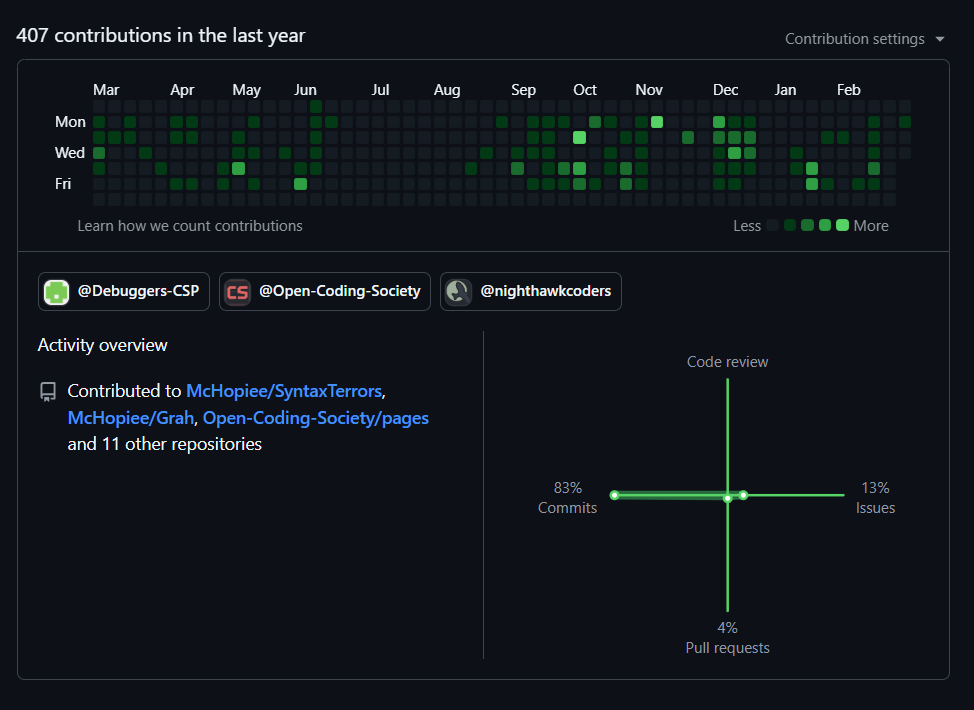
GitHub Analytics Summary
User: Individual review profile
Total Contributions (Last Year): 407
Main Repositories: McHopiee/pages_mchopiee, McHopiee/mchopie, Open-Coding-Society/pages
Key Observations & Trends
- Activity Growth: The squares shows a noticeable increase in consistency beginning in late August, with recurring activity blocks through fall and winter.
- Peak Periods: Highest concentration appears during November and again across January to February.
- Recent Momentum: Early February remains active, showing continued progress close to project deadlines.
- Work Pattern: Most contributions are commit-driven, supported by issue tracking and periodic pull request activity.
Transactional Data
State changes, staged updates, and confirm flow in GameBuilderTransactional Data Example
Draft-to-Commit State Flow
- User actions are staged before commit (`stagedCode`, `stagedStep`)
- Confirm action applies a transaction to editor and runtime
- Barrier updates are sent as payloads with `postMessage`
- State transitions are explicit: draft → confirmed → rendered
Why this is transactional data:
In GameBuilder, updates are not immediately final. Changes are first staged, then committed through a confirm action, then synchronized to the running game. That staged-to-committed lifecycle is transactional behavior.
Example transaction lifecycle
- User edits controls or draws barriers.
- Builder stores pending updates in staged state.
- Confirm applies the staged transaction to code and game objects.
- Runtime receives synchronized barrier payloads and replaces prior overlay barriers.
// Stage changes before commit
stagedCode = composed;
stagedStep = composedStep;

// Commit transaction on confirm
document.getElementById('btn-confirm').addEventListener('click', () => {
  const merged = mergeDefsAndClasses(oldCode, ins.defs, ins.classes);
  simulateTypingChange(oldCode, merged, () => {
    stagedCode = null;
    stagedStep = null;
    runInRunner();
  });
});// Transaction payload sent to runtime and applied
window.addEventListener('message', (e) => {
if (e.data.type === 'rpg:set-drawn-barriers') {
const arr = Array.isArray(e.data.barriers) ? e.data.barriers : [];
// remove old overlay barriers, then add new committed set
}
});JSON Tutorial
Problem framing, workflow, and presentation evidence1-Minute Task Choice
Problem → Solution
- Problem: limited built-in visual choices
- Solution: extensible image onboarding workflow
- No new page required
- Reusable across team pages

The task replaces a fixed built-in asset list with a dynamic file + manifest workflow so users can use their own game art without rewriting engine logic.
Custom Asset Upload Workflow
Implementation Workflow
- Put files in `images/gamebuilder/bg` and `images/gamebuilder/sprites`
- Register each item in folder `index.json`
- Use `rows` and `cols` for sprite-sheet slicing
- Click Refresh Assets to repopulate UI

Background manifest example:
[
  {
    "name": "Forest Night",
    "src": "/images/gamebuilder/bg/forest_night.png",
    "w": 1280,
    "h": 720
  }
]
JSON scan logic used to load the correct image entries:
const GB_BG_DIRS = ['/images/gamebuilder/bg'];
const GB_SPR_DIRS = ['/images/gamebuilder/sprites'];
Part 1 — Define search paths:
- GB_BG_DIRS stores background directories.
- GB_SPR_DIRS stores sprite directories.
- Using arrays keeps scan logic reusable.
async function fetchJson(url) {
  try {
    const res = await fetch((SITE_BASE ? (SITE_BASE + url) : url), { cache: 'no-store' });
    if (!res.ok) return null;
    const ct = res.headers.get('content-type') || '';
    if (ct.includes('application/')) return await res.json();
    return null;
  } catch (_) {
    return null;
  }
}
Part 2 — Fetch JSON safely:
- Requests the URL without stale cache.
- Verifies content type is JSON.
- Returns null when fetch fails so the scan can keep going.
for (const dir of GB_BG_DIRS) {
  const manifestUrls = [dir + '/index.', dir + '/manifest.json'];
  let data = null;
  for (const u of manifestUrls) {
    data = await fetchJson(u);
    if (data) break;
  }

  if (data && Array.isArray(data)) {
    for (const item of data) {
      const name = item.name || item.key || item.src;
      const key = sanitizeKey(name);
      const srcRel = item.src?.startsWith('/')
        ? item.src
        : (dir.replace(/\/$/, '') + '/' + (item.src || ''));
      assets.bg[key] = { src: srcRel, h: item.h, w: item.w };
    }
  }
}
Part 3 — Load background manifests:
- Tries index.json first, then manifest.json.
- Uses the first valid JSON file found.
- Normalizes each item and stores it in assets.bg.
for (const dir of GB_SPR_DIRS) {
  const manifestUrls = [dir + '/index.', dir + '/manifest.json'];
  let data = null;
  for (const u of manifestUrls) {
    data = await fetchJson(u);
    if (data) break;
  }

  if (data && Array.isArray(data)) {
    for (const item of data) {
      const name = item.name || item.key || item.src;
      const key = sanitizeKey(name);
      const srcRel = item.src?.startsWith('/')
        ? item.src
        : (dir.replace(/\/$/, '') + '/' + (item.src || ''));
      assets.sprites[key] = {
        src: srcRel,
        h: item.h,
        w: item.w,
        rows: item.rows || 4,
        cols: item.cols || 3
      };
    }
  }
}
Part 4 — Load sprite manifests:
- Follows the same manifest-search pattern as backgrounds.
- Saves sprite metadata in assets.sprites.
- Applies default rows and cols for sprite-sheet slicing.
- Together, these loops build the final background and sprite catalogs used by the editor UI.
Previous Video Demonstration
Video Evidence
- Previous Skill A video moved to JSON Tutorial

Previous video (now in JSON Tutorial):